

Today, I uncovered an interesting and slightly unsettling aspect of phishing and marketing emails. Have you ever noticed that images in some emails are blocked by default? That is not a bug. It is a feature, and a very important one.
Many emails that land in your inbox are not just trying to sell you something. They are also trying to find out if you opened the email, when you opened it, and even where you were at the time. Tools like Mailchimp and similar marketing platforms make this very easy to do.
How Email Tracking Actually Works
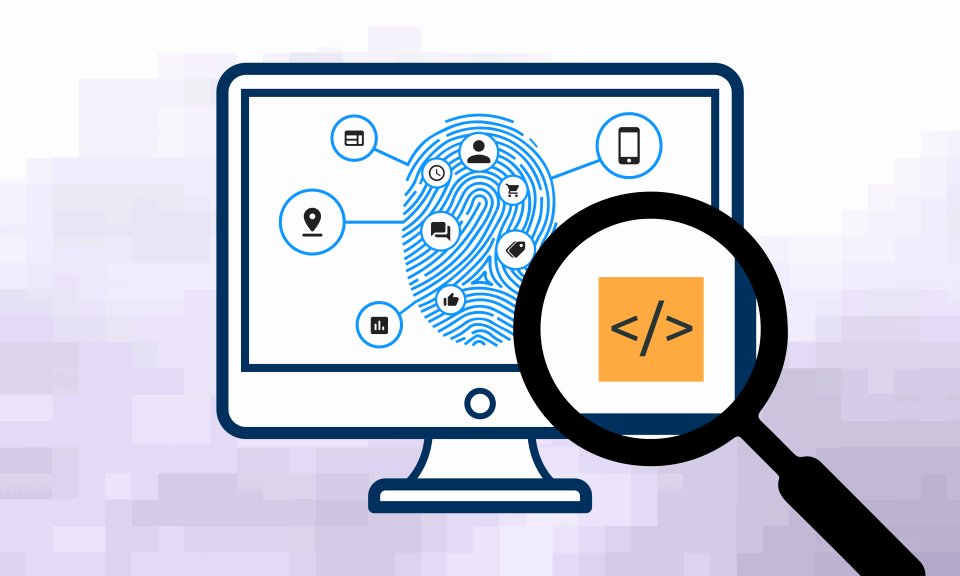
The tracking is usually done using something called a tracking pixel. This is a tiny, often invisible image embedded inside an email or hidden within a link.
When you open the email and images are allowed to load, that pixel makes a request to the sender’s server. That single request can reveal:
- That the email was opened
- The exact time it was opened
- Your IP address
- Your approximate location
- Your device or email client
This technique is heavily used in marketing, but attackers can also abuse it. In phishing campaigns, tracking pixels help attackers identify active email accounts and prioritize victims.
Why Your Email Provider Blocks Images
When Gmail or other email providers block images by default, they are protecting you. By preventing automatic image loading, they stop trackers from firing without your consent.
If you manually click “Display images,” you are essentially allowing that tracking request to happen.
How to Disable Automatic Image Loading in Gmail
You can reduce this tracking by changing one simple setting in Gmail:
- Click the gear icon in the top-right corner and select “See all settings.”
- Under the General tab, scroll down to Images.
- Select “Ask before displaying external images.”
- Scroll to the bottom and click Save Changes.
This small change gives you control over when trackers are allowed to load.
Why This Matters
Understanding how tracking works helps you make better security decisions. Something as simple as loading an image can reveal more about you than you might expect.
Cybersecurity is not always about complex tools or advanced attacks. Sometimes, it is about awareness and knowing what is happening quietly in the background.
If you want a deeper dive into email tracking pixels, you can read the full article on The Verge: Email Pixel Trackers Explained

No comments yet.